> ## Documentation Index
> Fetch the complete documentation index at: https://developer.sandbox.co.in/llms.txt
> Use this file to discover all available pages before exploring further.
# Create API credentials
> This guide helps you to create an API user for consuming E-Way Bill APIs.
To access E-Way billing through APIs, the taxpayer has to create API credentials on the E-Way Bill portal. The API credentials are to be passed in the [E-Way Bill Authentication API](/api-reference/gst/compliance/endpoints/e-way-bill/authenticate) to generate the 6-hour access token.
**Prerequisites:** You must have an active GST account and access to the [E-Way Bill portal](https://ewaybillgst.gov.in/).
Log in to your account on the [E-Way Bill portal](https://ewaybillgst.gov.in/) using your GST credentials.
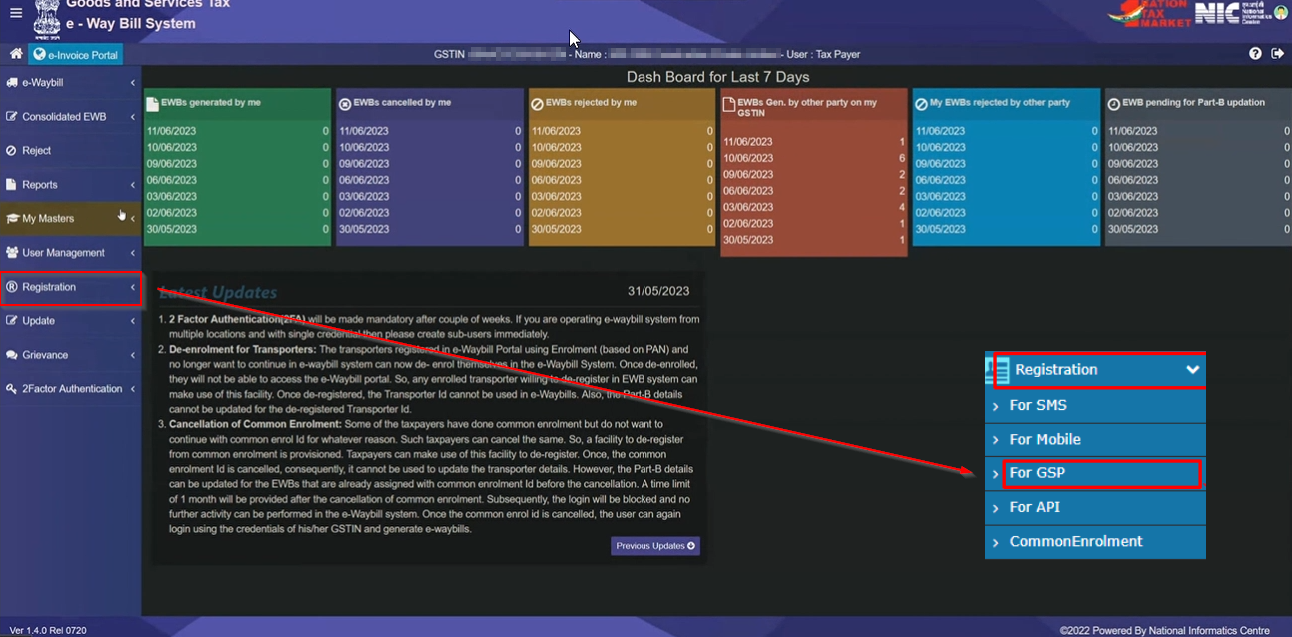
 Navigate to API registration for GSP. On clicking **"For GSP"**, you will be receiving an OTP, which needs to be entered to proceed further.
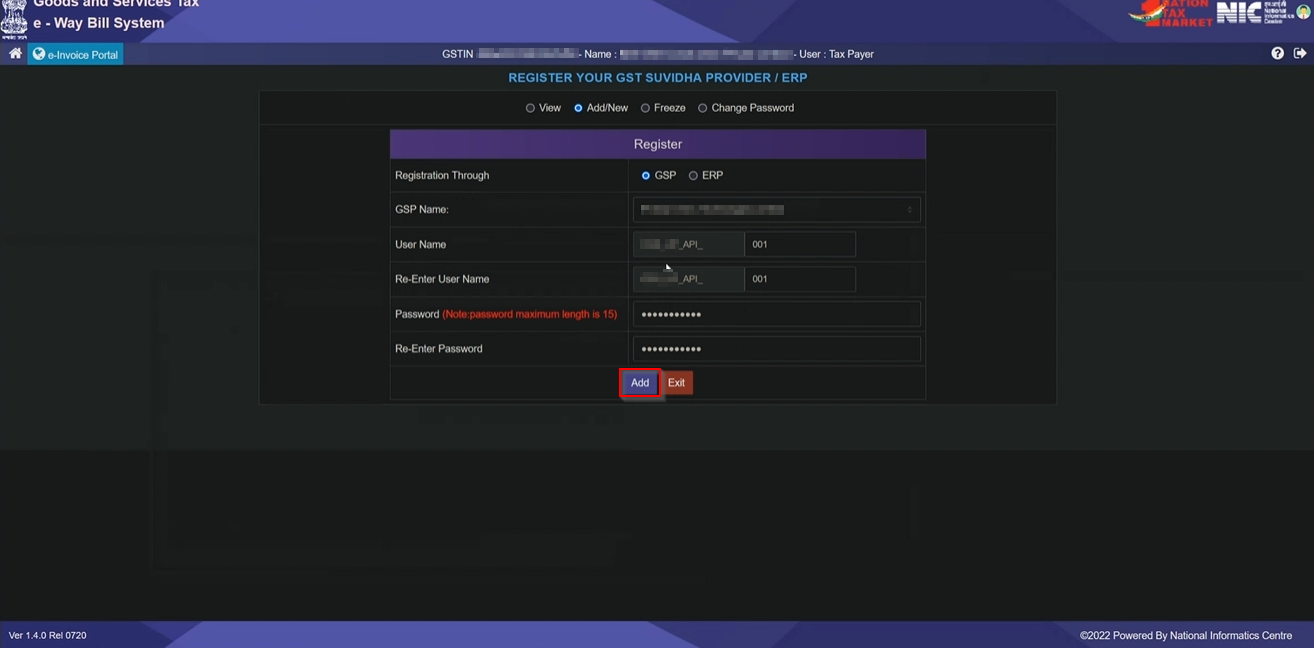
 Once you enter the OTP, you can click on **"Add/New GSP"** and select the GST Provider. In this case, add **"Quicko Infosoft Pvt. Ltd."**.
 Enter the username and password and then click on **"Add"**.
 After clicking **Add**, you will be able to see the list of GSP registered. Use this Username and password in the E-Way Bill Authentication APIs.
**Next Steps:** Use the username and password you created in Step 4 in the [Generate E-Way Bill Session](/recipes/gst/authentication/generate_e_way_bill_session) recipe. This recipe will guide you through obtaining a 6-hour E-Way Bill access token using these credentials.
After clicking **Add**, you will be able to see the list of GSP registered. Use this Username and password in the E-Way Bill Authentication APIs.
**Next Steps:** Use the username and password you created in Step 4 in the [Generate E-Way Bill Session](/recipes/gst/authentication/generate_e_way_bill_session) recipe. This recipe will guide you through obtaining a 6-hour E-Way Bill access token using these credentials.