> ## Documentation Index
> Fetch the complete documentation index at: https://developer.sandbox.co.in/llms.txt
> Use this file to discover all available pages before exploring further.
# Create API credentials
> This guide helps you to create an API user for consuming E-Invoice APIs.
To access e-Invoicing through APIs, you need to create API credentials on the E-Invoice portal. These credentials are used in the [E-Invoice Authentication API](/api-reference/gst/compliance/endpoints/e-invoice/authenticate) to generate a 6-hour access token.
**Prerequisites:** You must have an active GST account and access to the [E-Invoice portal](https://einvoice1.gst.gov.in/).
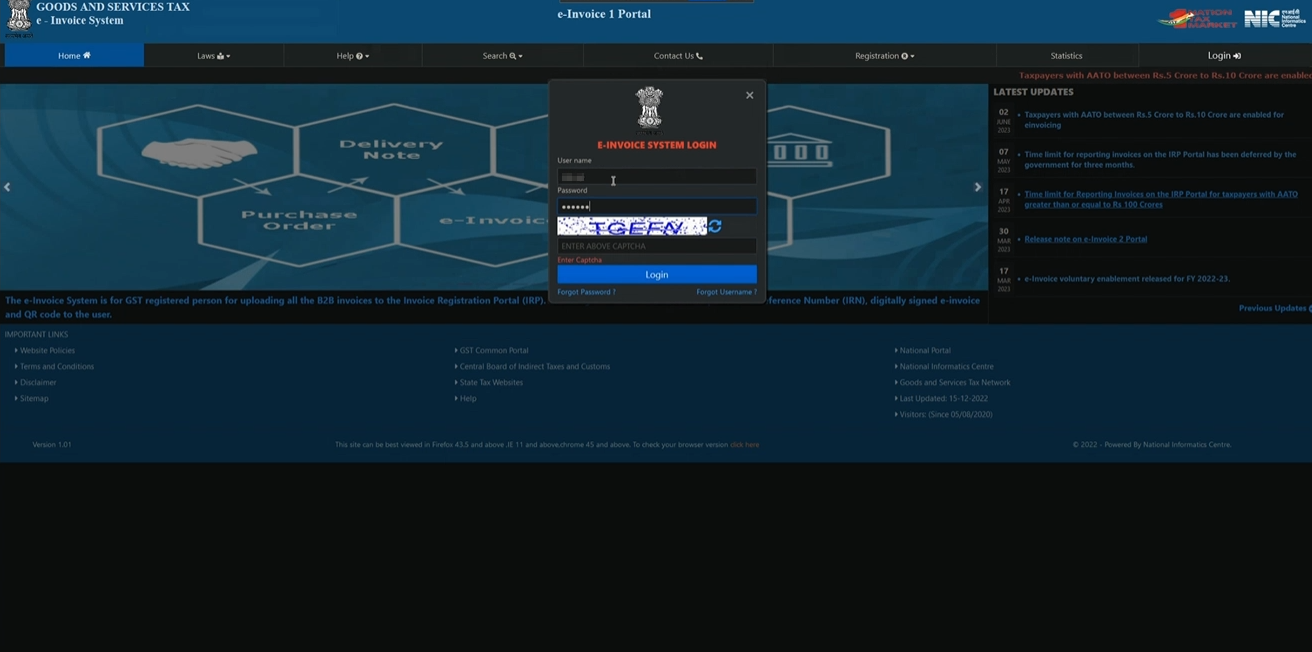
Log in to your account on the [E-Invoice portal](https://einvoice1.gst.gov.in/) using your GST credentials.
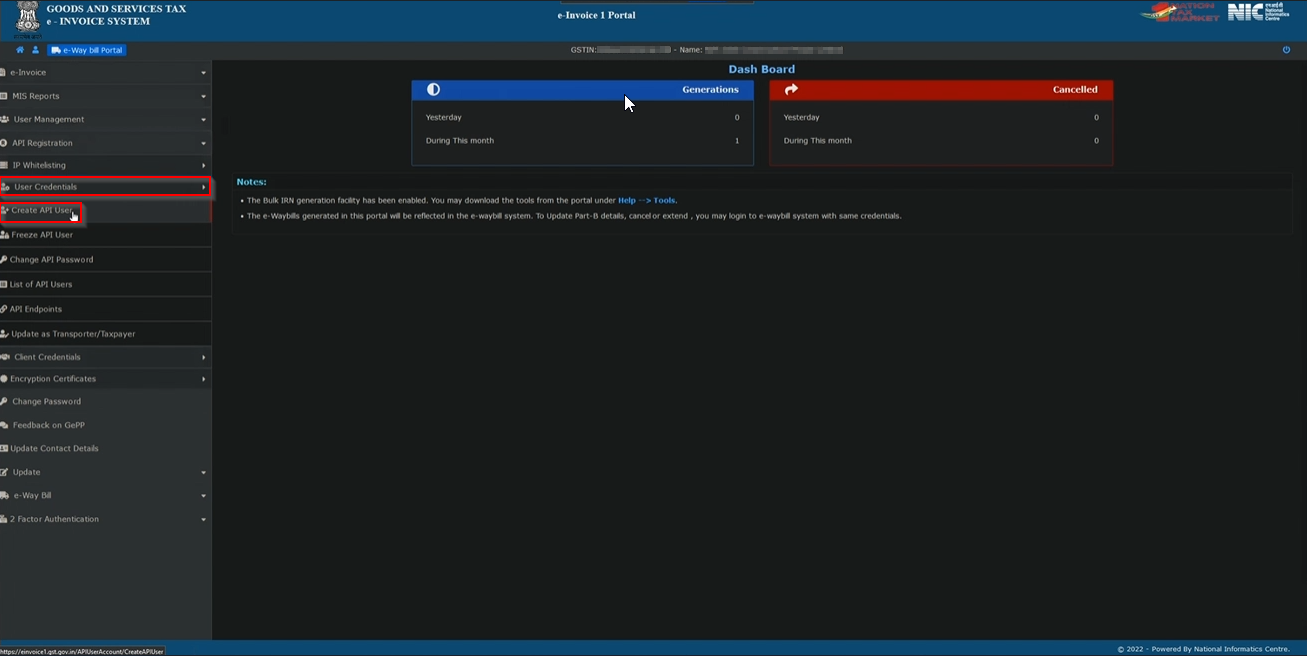
 Once logged in, navigate to **User Credentials** > **Create API User** from the main menu.
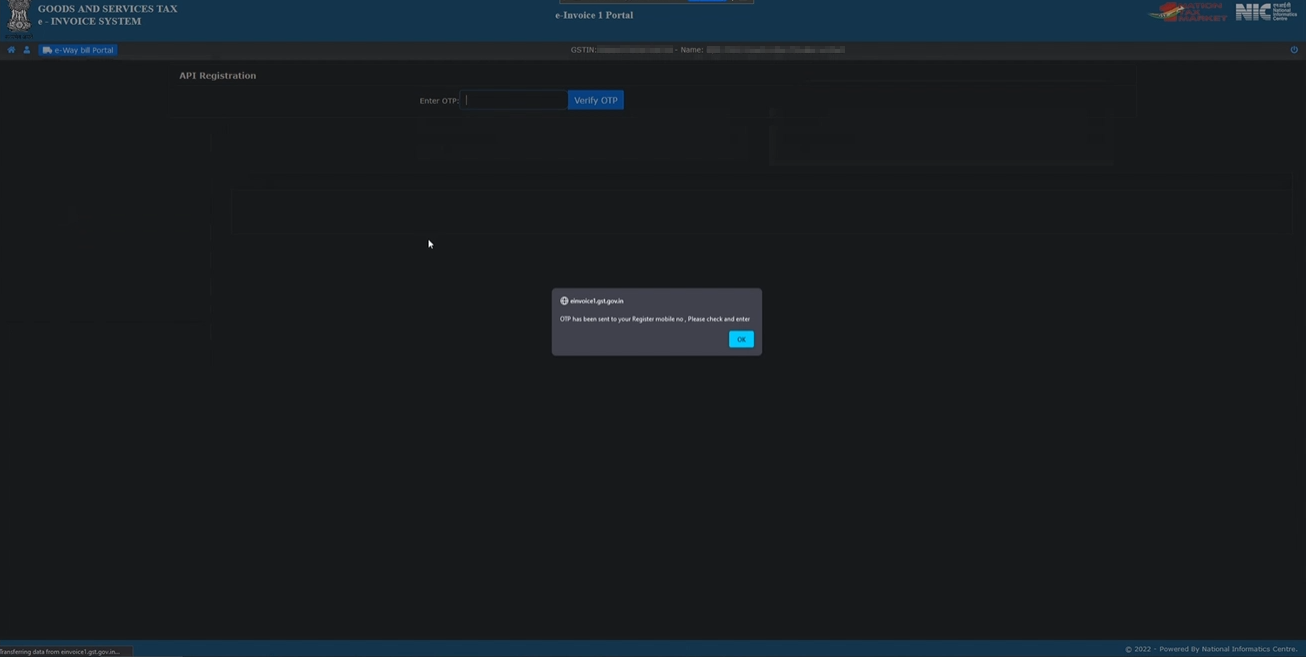
 Enter the OTP (One-Time Password) that you receive on your registered mobile number or email address. The OTP is sent automatically when you initiate the API user creation process.
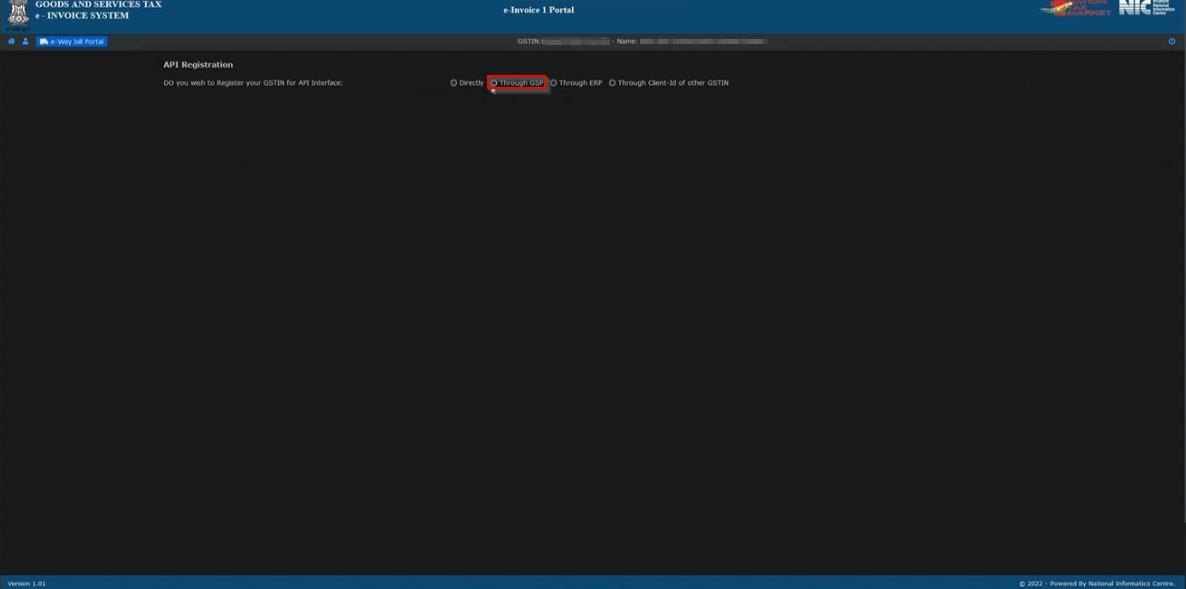
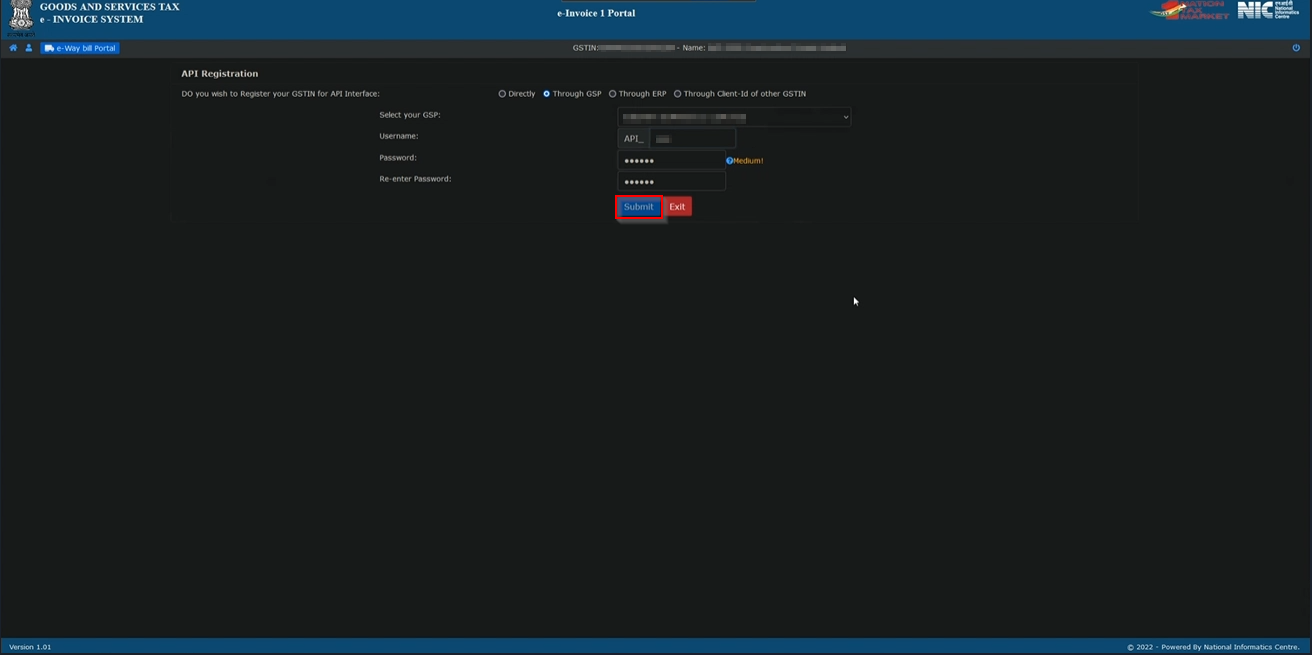
 After entering the OTP, click on **"Through GSP"** option to proceed with creating the API user through a GST Suvidha Provider.
 Complete the following fields to create your API user:
1. **Select the GST Provider:** Choose **"Quicko Infosoft Pvt. Ltd."** from the dropdown list.
2. **Enter Username:** Create a unique username for your API user.
3. **Enter Password:** Create a secure password for your API user.
4. **Click Submit:** Review your details and click **Submit** to complete the registration.
Complete the following fields to create your API user:
1. **Select the GST Provider:** Choose **"Quicko Infosoft Pvt. Ltd."** from the dropdown list.
2. **Enter Username:** Create a unique username for your API user.
3. **Enter Password:** Create a secure password for your API user.
4. **Click Submit:** Review your details and click **Submit** to complete the registration.
 After clicking **Submit**, you will see a confirmation message and the list of registered GSP users. Your API user credentials are now active.
**Next Steps:** Use the username and password you created in Step 5 in the [Generate E-Invoice Session](/recipes/gst/authentication/generate_e_invoice_session) recipe. This recipe will guide you through obtaining a 6-hour E-Invoice access token using these credentials.
After clicking **Submit**, you will see a confirmation message and the list of registered GSP users. Your API user credentials are now active.
**Next Steps:** Use the username and password you created in Step 5 in the [Generate E-Invoice Session](/recipes/gst/authentication/generate_e_invoice_session) recipe. This recipe will guide you through obtaining a 6-hour E-Invoice access token using these credentials.